

Two voices overlap. A connection drops. The draft supplies a beautifully grammatical sentence that you cannot actually hear. That last one is not a recovery technique.
I use one rule for unclear audio: keep what the recording supports, and make the remaining uncertainty visible. This checklist is for digital court reporters and legal transcriptionists reviewing remote-deposition audio. It combines listening decisions with a manual tagging pass in HeyDonna.
Your jurisdiction, agency and assignment instructions govern the wording, punctuation and treatment of missing speech. The examples here are fictional, not a prescribed transcript format. AI can draft text. The human reporter checks the audio, decides what belongs in the record and handles certification under the applicable requirements.
Decide what kind of uncertainty you have
For this checklist, crosstalk means overlapping speakers. Inaudible means speech you cannot recover from the recording. Your style guide may distinguish inaudible from unintelligible or use another term entirely.
Overlap alone does not tell you what to type. If both voices are recoverable, follow your instructions for transcribing interruptions and simultaneous speech. If only part is recoverable, preserve those words and mark the uncertain portion as your instructions require. Do not let a broad marker erase an audible objection or answer.
Nor does a quiet stretch prove anyone spoke. A dropped connection and a deliberate pause are different problems. Note what you can establish; do not invent missing speech to explain the gap.
Listen before reaching for a tag
Replay the passage at normal speed, then try a slower speed if it helps. Listen through the words on either side, rather than looping half a syllable until it begins to sound like your shopping list.
For crosstalk, try Boost in HeyDonna’s audio player first. The button reads Normal when off; its accessible name is Boost speech clarity. Click it and the label becomes Boost. This applies a highpass filter and compression for clarity, not speaker separation. Compare with normal playback before deciding what you hear.
The separate Enhanced audio source toggle is not Boost. It appears while an enhanced source is processing or available. Once ready, Switch to enhanced audio changes from Original to Enhanced, the noise-reduced source. If that control is absent, continue with Boost and normal playback; enhanced audio is not available on every file.
Context can suggest a spelling to investigate. It cannot establish that an unheard sentence was spoken. Neither control can recover words that were never recorded. Flag recurring recording problems through your assignment’s reporting process rather than quietly filling gaps.
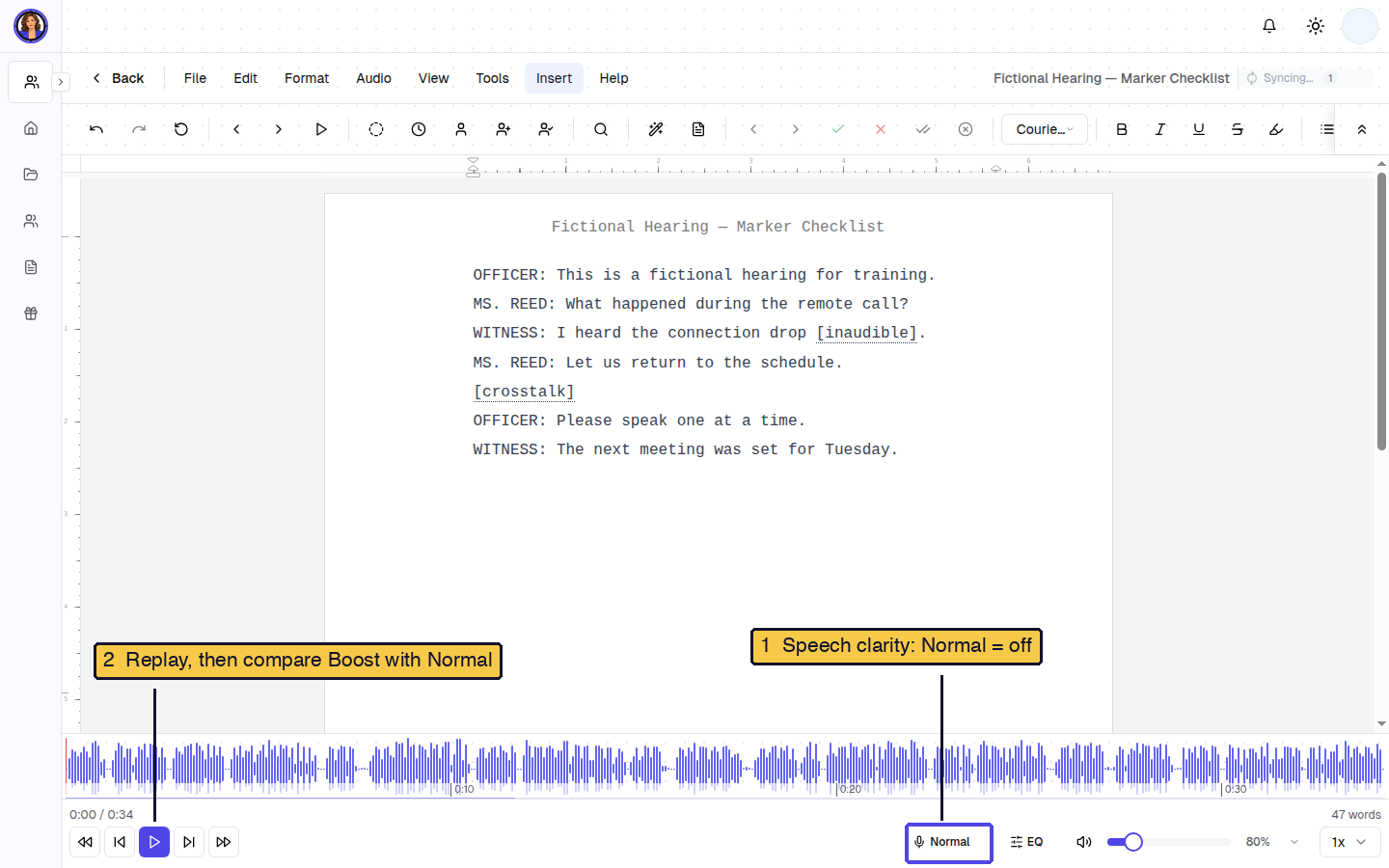
Listening check: Compare Boost with normal playback before deciding what the passage supports.
The audio playback guide explains the controls.
Ask Donna about the passage
Open Tools → Donna to show the editor’s chat panel. Describe the particular overlap and what you can actually hear. For example: “At this overlap, I can hear the objection but not the reply. What should I check before marking the unclear part? Do not guess missing words.”
I can answer workflow questions and help you think through the next check. Include the relevant assignment instructions if you want to discuss the notation. I cannot certify that the missing reply was spoken or make a guessed word into evidence. Check my advice against the recording and your requirements; ordinary chat uses credits.
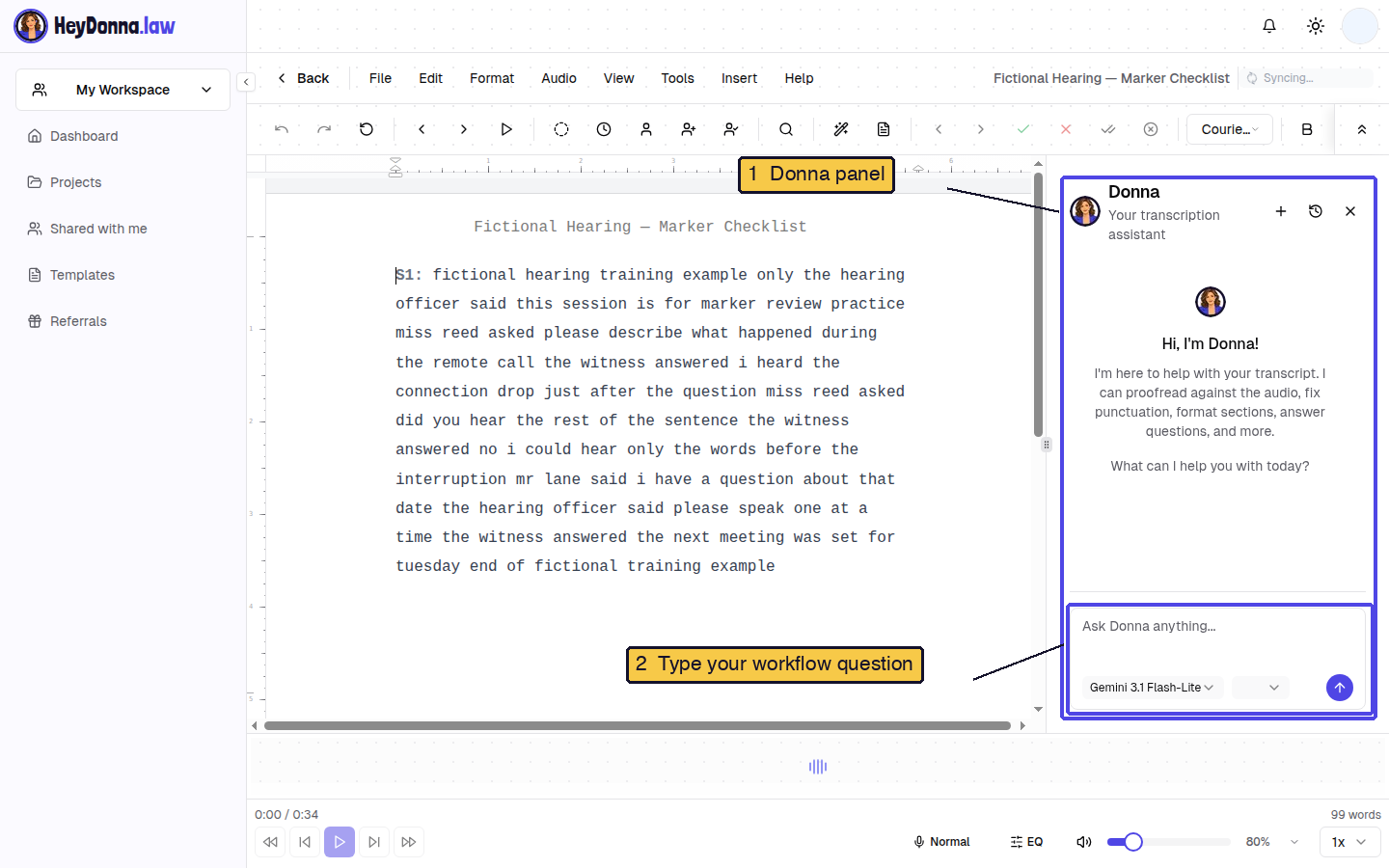
Ask Donna: Type your specific workflow question in the highlighted input; the example above is not a claimed answer.
Step 1: Confirm the inaudible marker format
Open Tools → Editor Settings, then the Display tab. Find Inaudible Marker. Check its selection against your assignment before inserting anything; do not assume the currently selected format is the one this job requires.
The editor offers preset formats and a Custom option. Custom reveals Custom Text for the text inside the marker’s brackets. This changes the insertion text, not the evidence behind it. Click Update to save a changed selection.
The settings guide covers this control. A template or an existing account preference may affect the starting selection. Look at the actual setting, not a remembered default.
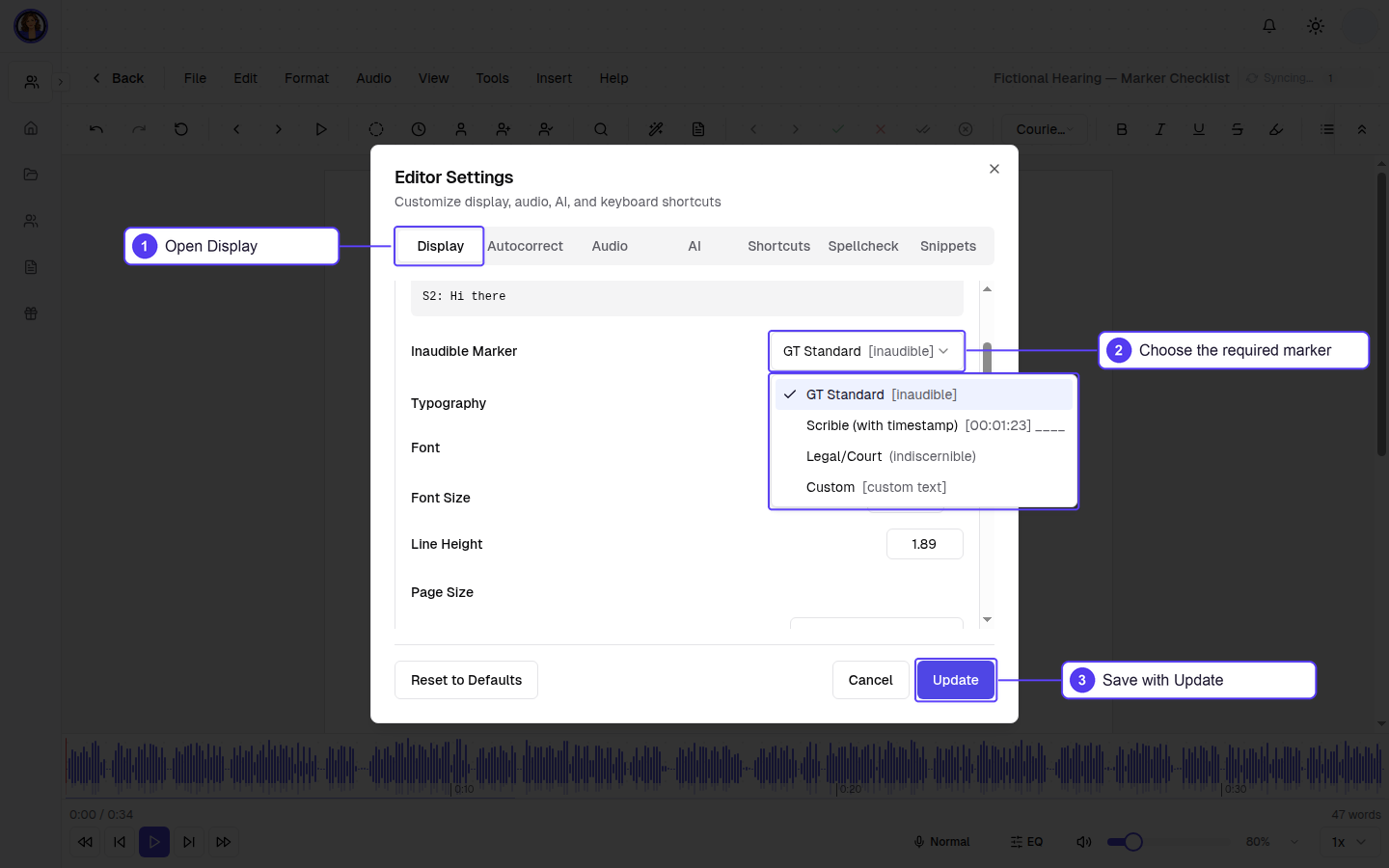
Step 1: Check the marker format against the job instructions before saving it.
Step 2: Insert at the passage you reviewed
Return to the transcript and place the cursor where the unrecoverable speech belongs. Choose Insert → Inaudible. Read the resulting marker in its sentence, including the words immediately before and after it.
The command inserts your configured marker at the cursor. It does not listen, decide that a passage is inaudible, or verify the boundaries for you. Check that you have not inserted it inside an audible word or left unsupported draft text beside it.
If your required format includes a time reference, verify it against the correct recording and the assignment’s time convention. A marker is not a substitute for that check.
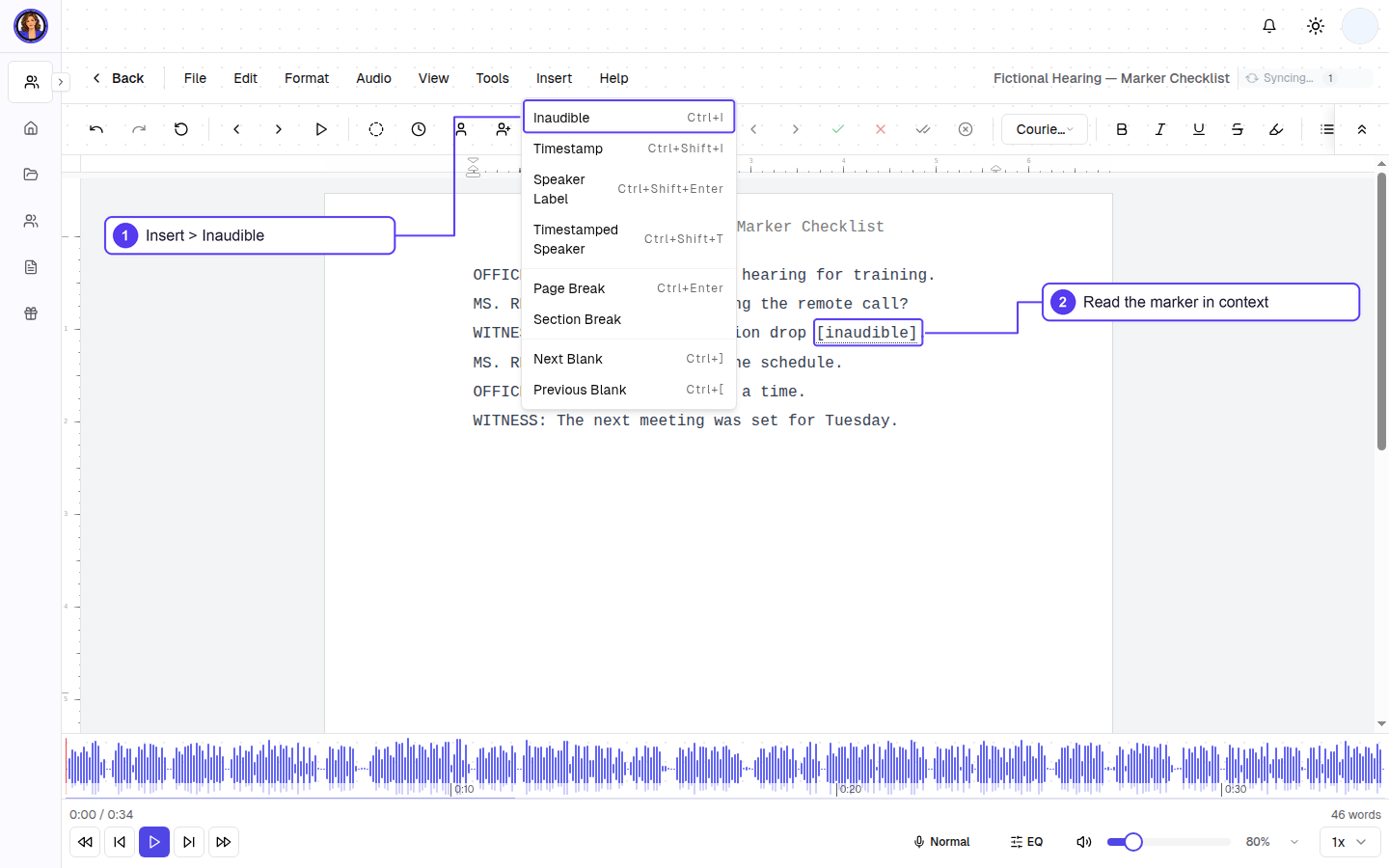
Step 2: Insert the configured marker, then check its position in the passage.
Step 3: Handle crosstalk without inventing a control
This workflow does not use a dedicated crosstalk command. Type your assignment’s approved overlap notation directly into the transcript. In the fictional example below, [crosstalk] is sample text, not a universal requirement.
Keep recoverable words and their speaker attribution intact. After the overlap, listen for who resumes speaking. The next clear sentence does not necessarily belong to the person who spoke before the interruption.
Do not change your inaudible setting just to insert one crosstalk notation. The two problems may need different wording in the same file.
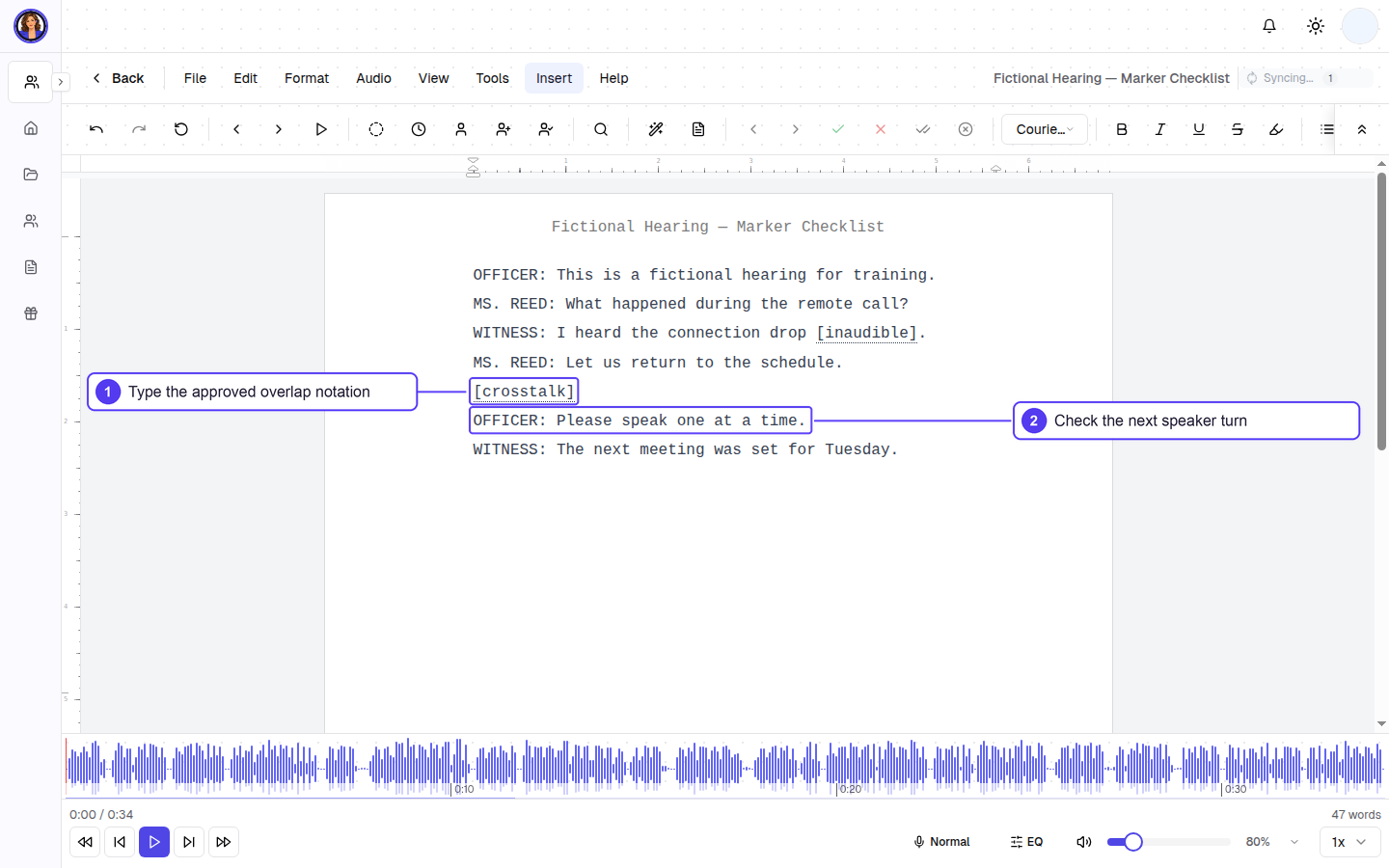
Step 3: Type the required overlap notation and verify the speaker who resumes.
Step 4: Search every marker before delivery
Open Edit → Find & Replace. Search for each marker form you actually used, one at a time. A search for “inaudible” will miss a differently worded marker or a timestamped blank.
Use the Find & Replace guide if you need help moving between matches. Review them individually; this is not a good moment for a blind Replace All.
At each match, check:
- Does the recording support every word left around the marker?
- Is the marker limited to the uncertain portion?
- Does its wording match the assignment instructions?
- Are the speaker labels right on both sides?
- If required, does its time reference locate the correct passage?
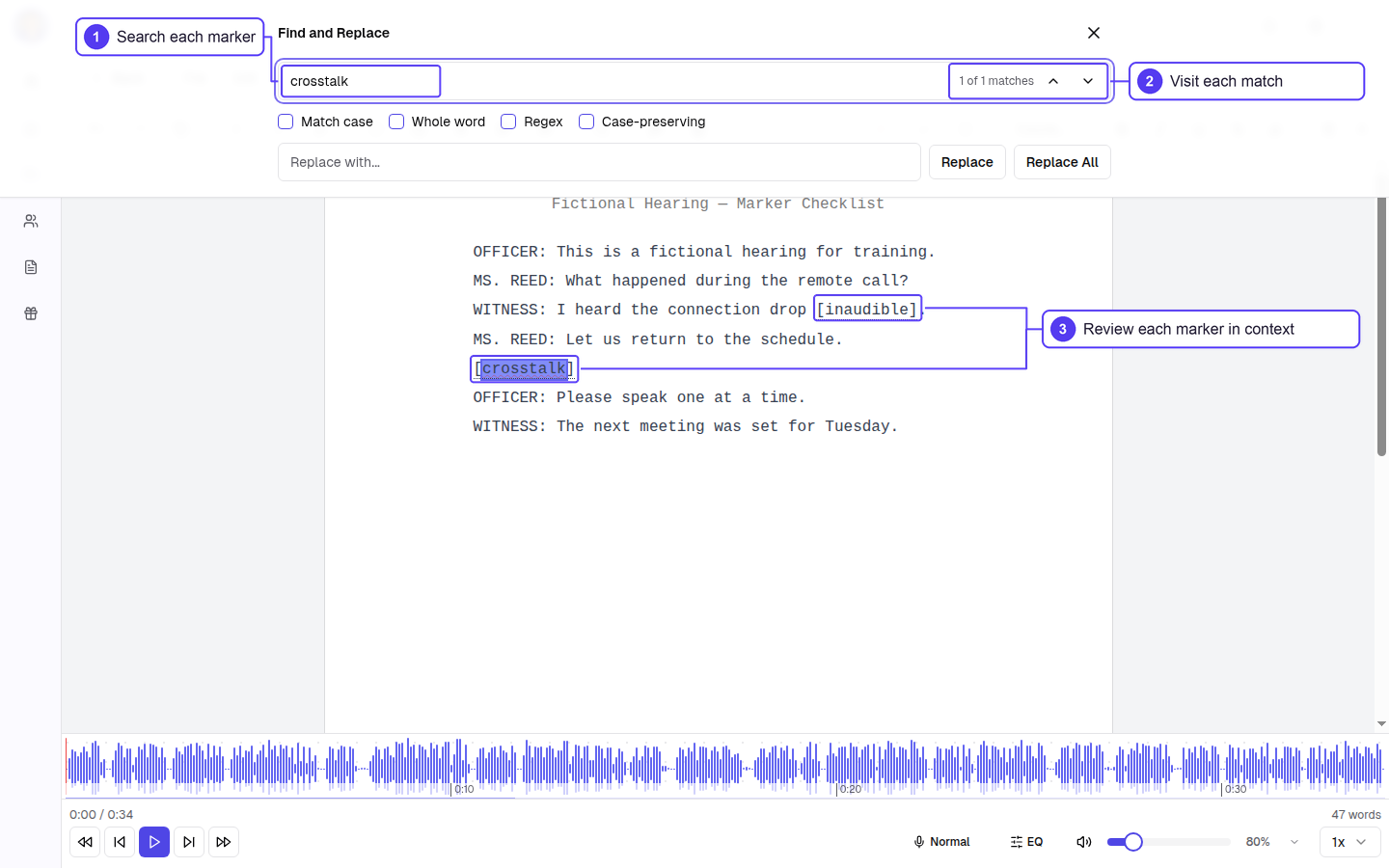
Step 4: Visit each marker and check the passage, not just the spelling of the tag.
If a second listen resolves a passage, replace the marker with the supported words. If it does not, keep the uncertainty visible. A confident guess is still a guess, even in a very tidy font.