

A shortcut should save typing, not finish somebody else’s sentence. I like that distinction for objections. A familiar phrase is useful to have ready; it still has to match what was said.
In HeyDonna, these typing aids are called Snippets. They’re personal plain-text shortcuts, configured in Tools → Editor Settings → Snippets. You type / followed by your shortcut in the editor, then select its expansion. You do not need an external text expander or a CAT dictionary for this walkthrough.
Here is a small practice setup for digital reporters, remote-deposition reporters, legal transcriptionists and scopists working from audio. All examples are fictional.
Why a deliberate shortcut matters
Benjamin Jaffe, CER, discusses text expansion in AAERT’s September 2022 SoundBytes column, “Tech Corner — Typing Over 90 Words Per Minute”. His warning about unwanted predictive insertions is the useful starting point here: a typing aid should insert the phrase you chose, not an unexpected suggestion.
The objection examples below are mine for this exercise, not Jaffe’s entries. His column supplies the practical pain; HeyDonna’s Editor Settings documentation supplies the product instructions.
I would start with one entry and test it before adding more. An impressive library is less useful than a small one you trust.
Step 1: Open Snippets in Editor Settings
Open a fictional practice transcript in the editor. Choose Tools → Editor Settings, then the Snippets tab. This is separate from the Shortcuts tab, which manages keyboard combinations.
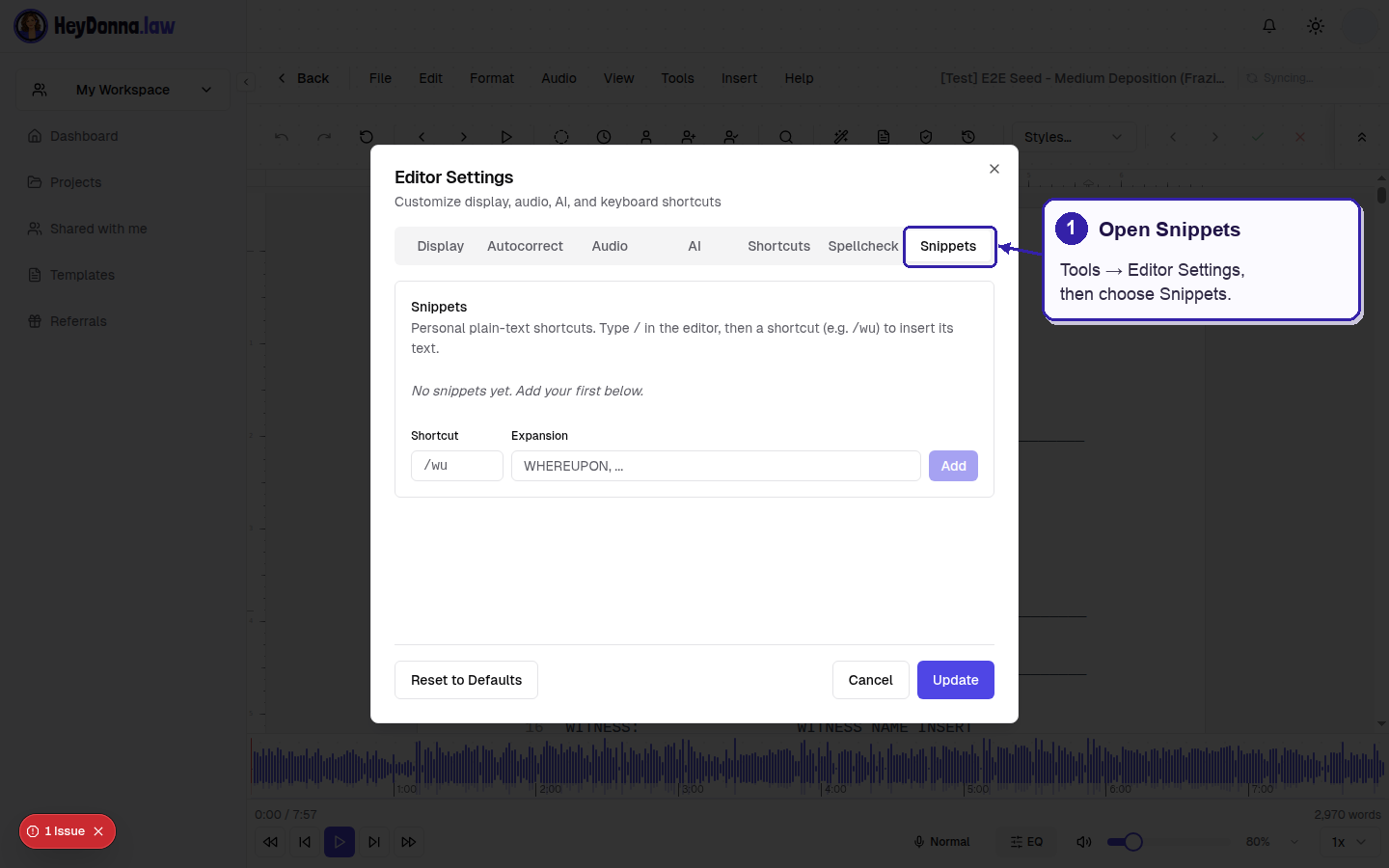
Choose Tools → Editor Settings → Snippets, not the keyboard Shortcuts tab.
Snippets stores your personal shortcut-and-expansion pairs. For this exercise, keep the expansion to the objection text itself. Do not include a speaker name, a case caption or instructions to the witness.
That separation matters. The same phrase can be spoken by different people. A reusable entry should not quietly bring yesterday’s speaker into today’s paragraph.
Step 2: Add one exact phrase
In Shortcut, enter /obf, including the slash. In Expansion, enter Objection to the form. Then click Add.
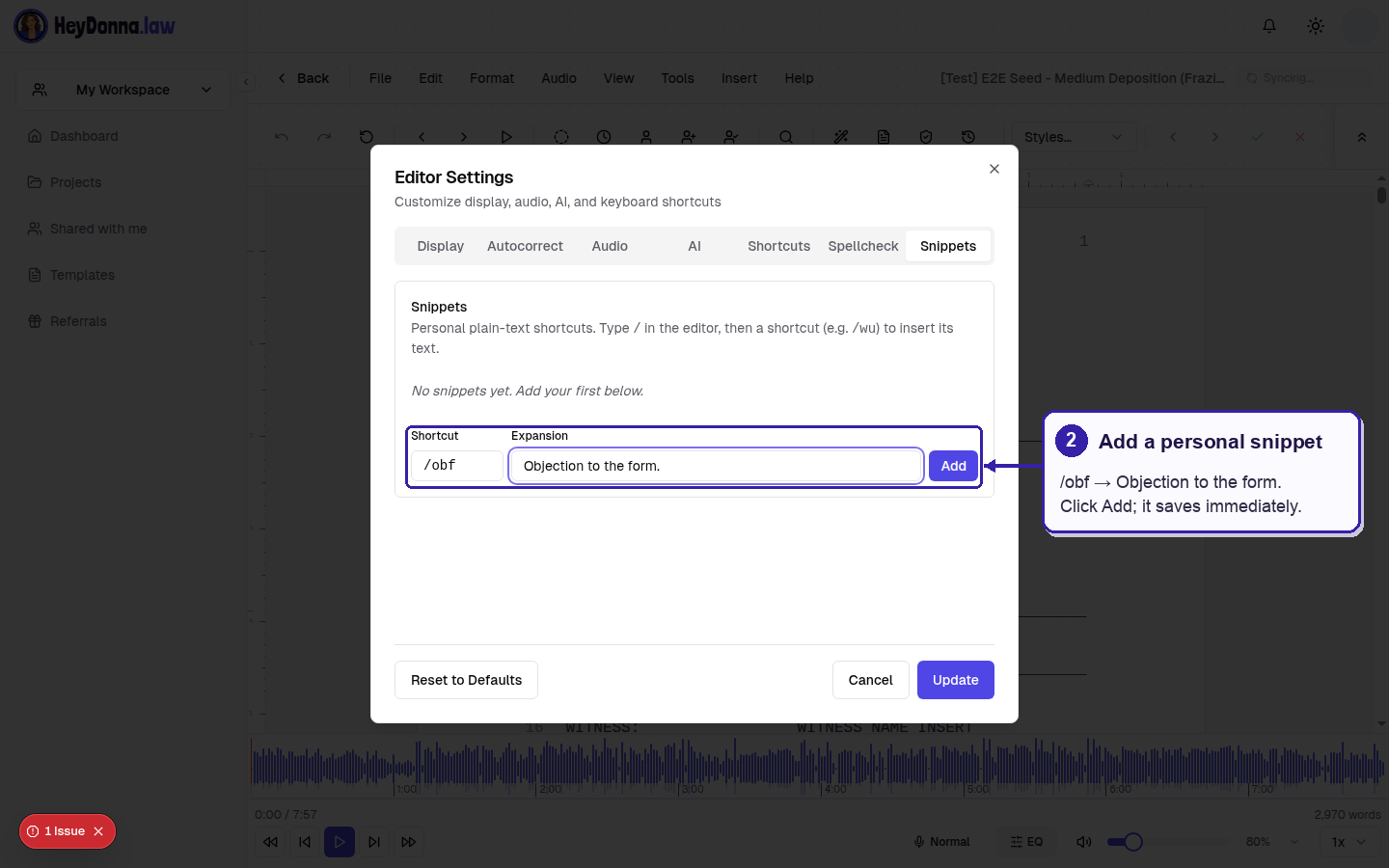
Add your own exact shortcut-and-expansion pair; these are sample words, not a built-in objection dictionary.
These are sample entries you can create yourself, not a built-in objection dictionary:
| Shortcut | Expansion |
|---|---|
/obf | Objection to the form. |
/obl | Objection, leading. |
/obj | Objection. |
Use only the entries that match wording you actually need. If the recording says “Objection, form,” the longer /obf example is not a substitute. Change the text or type the spoken words instead.
Snippet changes save immediately. They are not waiting for the settings dialog’s Update action, and Cancel does not undo them. Check the saved row before leaving the tab. An accidental expansion is easier to fix here than to remember during a long edit pass.
Step 3: Insert the Snippet in your practice transcript
Return to the transcript and place the cursor where the phrase belongs. Type /obf. Select the matching Snippet from the suggestion menu, by clicking it or pressing Enter with it selected.
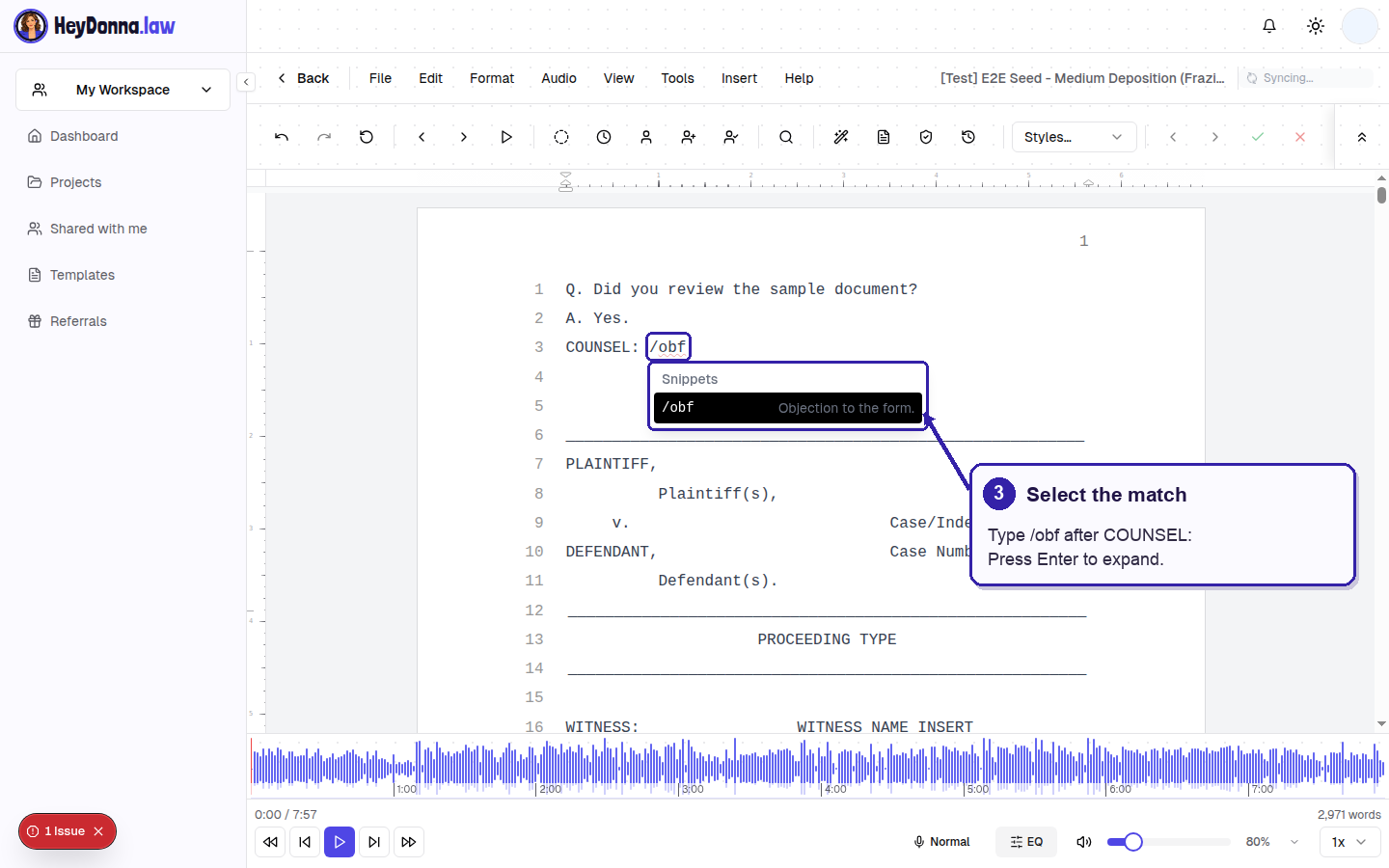
Type /obf where the phrase belongs, then deliberately select the matching suggestion.
The selected expansion replaces the typed shortcut. This is a deliberate selection, not a promise that typing three letters silently completes every objection.
Read the inserted text in context. Check capitalization, punctuation and the spaces on either side. Try the same entry in another fictional paragraph, too. A useful practice test shows you what the insertion does beside existing text, not just on an empty page.
Keep speaker identification separate. Confirm who spoke from the recording and apply the label required for the assignment. A Snippet inserts text; it does not identify counsel or decide whether a turn is testimony or colloquy.
Step 4: Compare the result with the audio
Suppose the recording contains only “Objection.” If you insert “Objection to the form,” remove the extra words. Familiar is not the same as spoken. The record is not asking for autocomplete’s opinion.
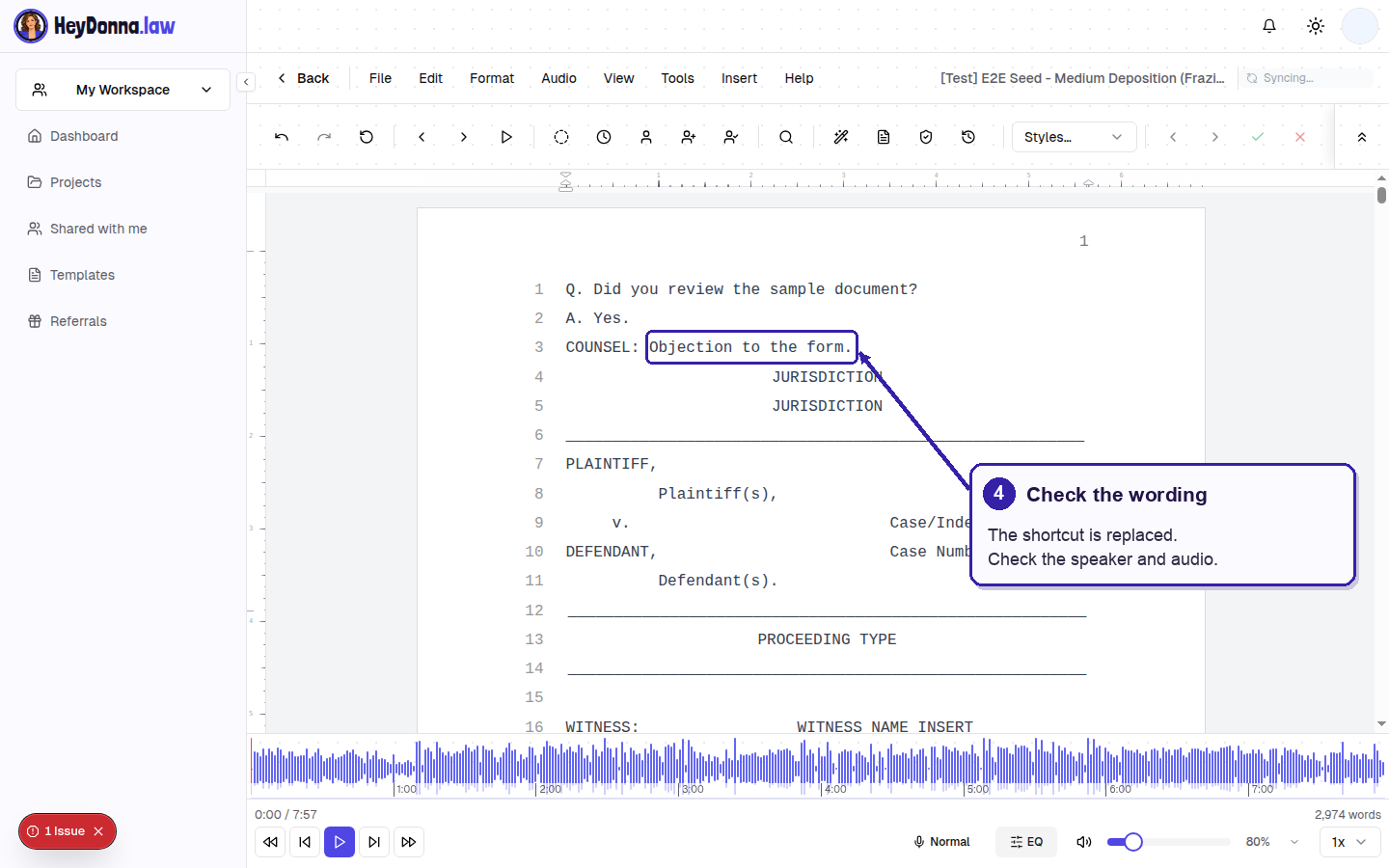
Enter replaces the shortcut with the saved wording; you still need to check the words and speaker against your audio.
Listen again when the passage is unclear. Do not use a stored phrase to fill a gap you cannot hear. Follow your established uncertainty workflow and the assignment’s requirements instead.
Check the surrounding speaker turn as well as the phrase. Objections often sit beside interrupted questions or answers. The shortcut does not decide where the interruption belongs, how to punctuate it, or whether another speaker continued afterward.
AI can help draft a transcript, but the human reporter checks, decides and certifies. Snippets are another typing aid within that work, not evidence and not legal advice about which objection should be made.
Step 5: Edit or delete entries you do not trust
Return to Tools → Editor Settings → Snippets to maintain the list. Use an entry’s edit control to change its shortcut or expansion, then Save. Use its delete control to remove an entry you no longer want.
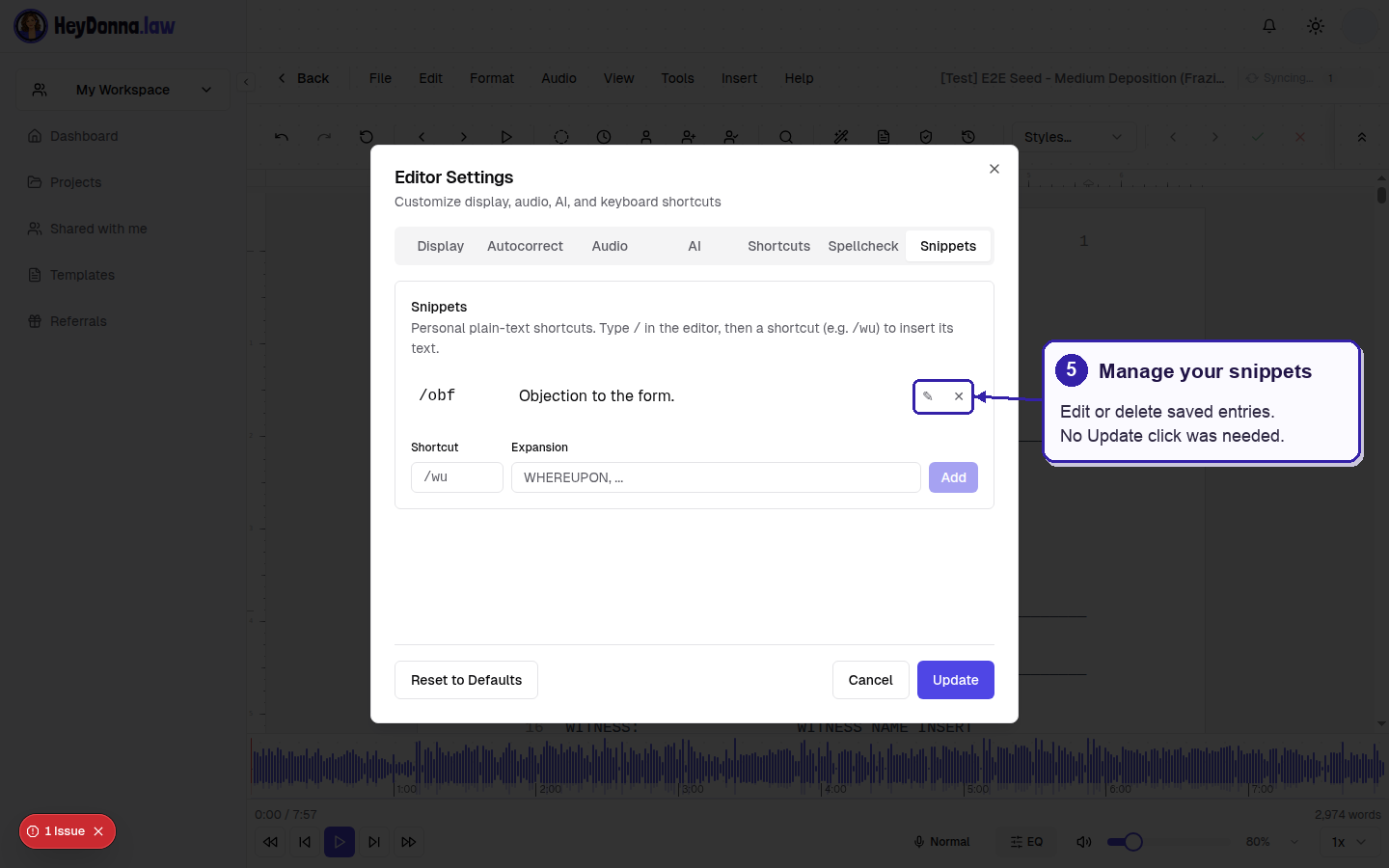
The row remains after reopening settings without clicking Update; edit or delete controls maintain the saved entry.
Those changes save immediately, too. Canceling the settings dialog will not restore a deleted entry. Retest a changed entry in the practice transcript before relying on it.
Keep the library small enough to recognize at a glance. If two shortcuts are easy to confuse, choose clearer names. Memory has enough work without becoming a second proofreading queue.
For page layout rather than phrase insertion, see building a reusable transcript template. They solve different problems: a template carries the document’s structure; a Snippet supplies a short piece of text you deliberately choose.
Try one before building a library
Start with /obf in a fictional document. Add it, insert it, compare it with your intended wording, and correct it if needed. That is the whole first exercise. No collection of fifty entries required.
Open HeyDonna and set up your first personal Snippet in Tools → Editor Settings → Snippets.