

An AI draft can read cleanly and still have the wrong person speaking. For anyone who certifies a transcript, that is the error that matters. Below are four places where speaker turns and Q/A labels go wrong in rough drafts, a short audio check for each, and the editor tools that fix them.
Why this keeps happening
Diarization decides where one voice ends and the next begins. It works from sound, so it struggles when sound is messy. Q/A and colloquy formatting is a second step that works from context: questions come from counsel, answers from the witness. When the first step is wrong, the second inherits the mistake. Our own feedback log has the same pattern from reporters: “no correct speaker identification and missing by lines and Q and A,” and “a lot of sections are getting formatted as Unidentified speaker.”
Four places it goes wrong
1. Short interjections. “Yes.” “Correct.” “Objection.” One or two words, often clipped by the next speaker, and often attached to whoever was talking before. Check: play the half-second before and after. If the voice differs from the turn it sits in, split the turn.
2. Crosstalk. Two attorneys talking over each other, or an objection landing on an answer. The draft usually picks one voice or merges both into one turn. Check: slow the audio and listen for the second voice. Decide, per your style guide, whether it is a separate turn or an inaudible tag. The crosstalk and inaudible tagging checklist covers that call.
3. A swap partway through. The draft starts right, then labels flip, so every question after that is tagged as the answer. Alternation looks plausible, so it can slip past a skim. Check: find the first line where a question sounds like the witness. Review from there forward.
4. Colloquy forced into Q/A. Statements between counsel, rulings and housekeeping are not questions or answers, but a formatter that wants a clean rhythm may make them so. Check: wherever a Q or A line contains neither, ask whether it is colloquy that should carry a speaker name. Your style guide controls the convention.
Fix it in the editor
Start with a names-to-voices map: appearances, each person’s role, who each attorney represents, and the recorded introductions. Confirm spellings from the record. Then work through these tools. Follow your jurisdiction and agency instructions; none of this is a prescribed transcript format.
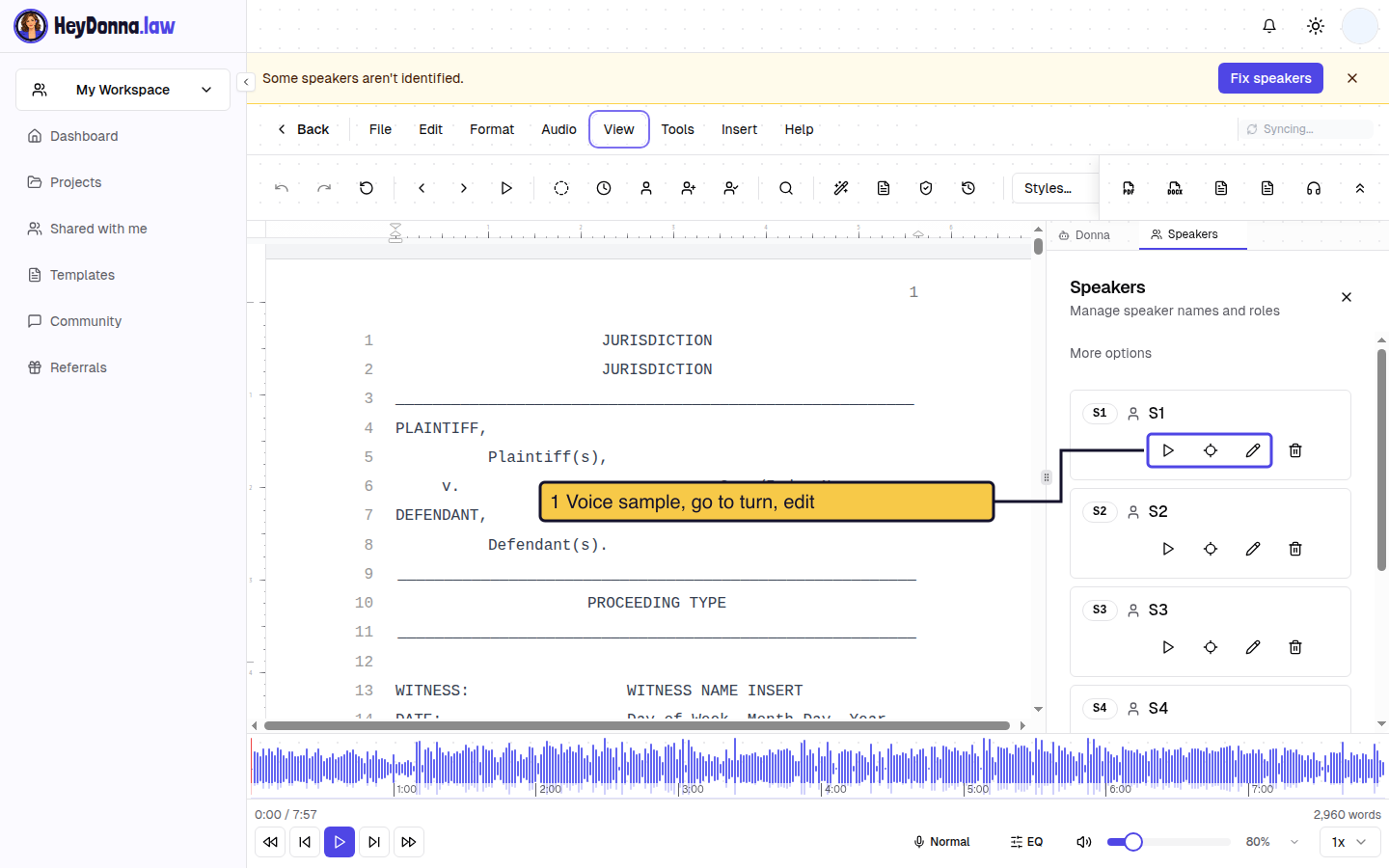
Speakers panel. Choose View, then Speakers. The panel lists each speaker with name and role. On an audio-backed, multi-speaker transcript, each card can play a short voice sample and jump to that speaker’s turn, so you can compare a voice with the introduction.
Suggest names. The Suggest names button shows for S1/S2-style generic labels before formatting. It runs only when you click it. Review each proposal against the introduction and spelling, edit any you need, select the ones you want, click Apply, then Save Changes. If no name is proposed, name the speaker by hand from your notes.
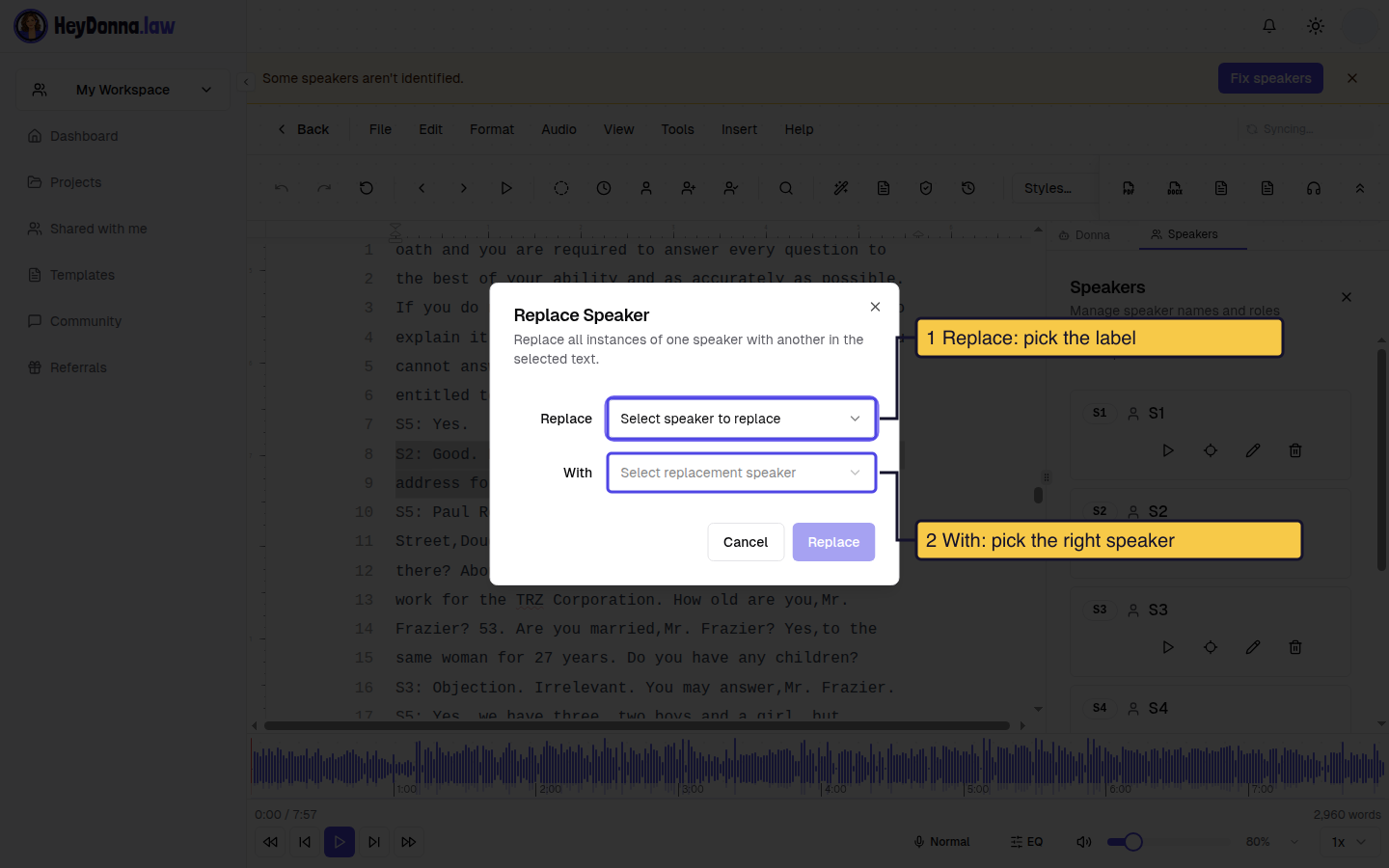
Replace Speaker. Select the passage, then press Ctrl+Alt+R (Cmd+Alt+R on Mac). Choose the speaker to replace and the speaker to replace it with, then click Replace. It changes matching labels only inside your selection, so listen to the disputed turn first.
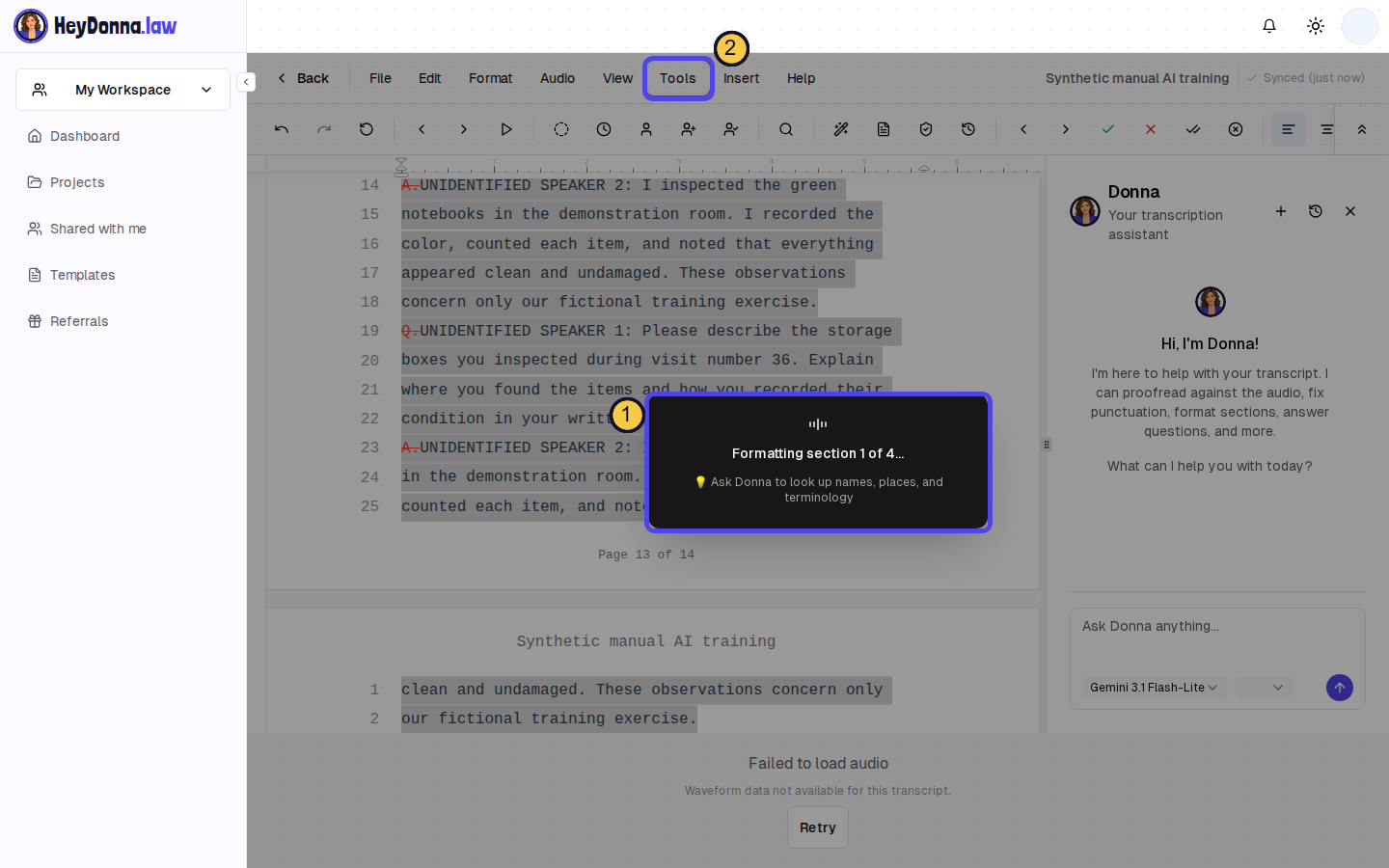
Format Section. Format Section (Ctrl+Shift+F) formats the current section or your selection, not automatically the whole file. To run the whole file, select the entire document first. The formatter then works through it in sections and applies Q/A and speaker labels. Before you certify, check that every section was formatted. Anything it cannot place stays as “UNIDENTIFIED SPEAKER”, the leftover label step 4 of the checklist below tells you to search for. Treat each of those as a prompt to listen and decide who is speaking.
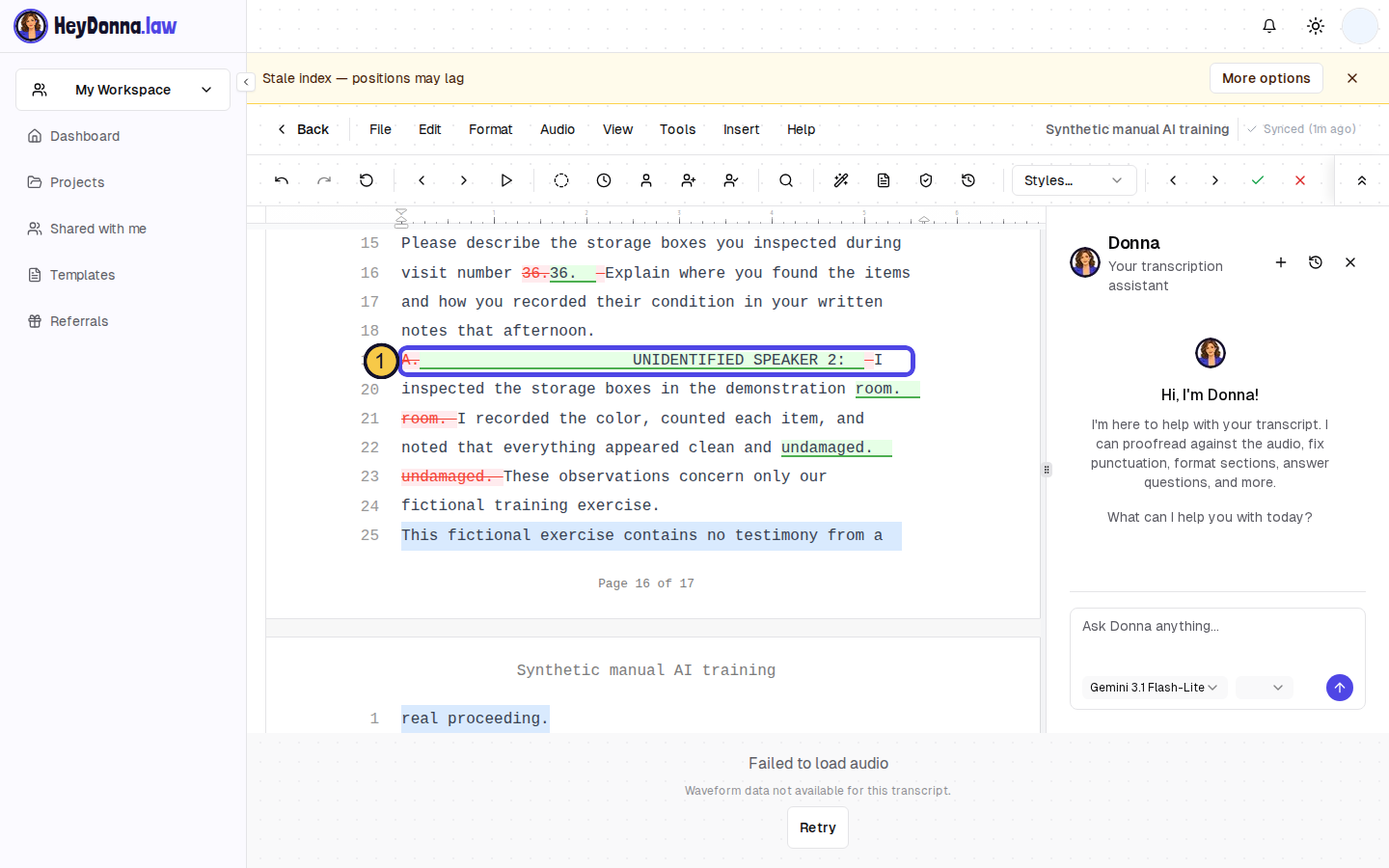
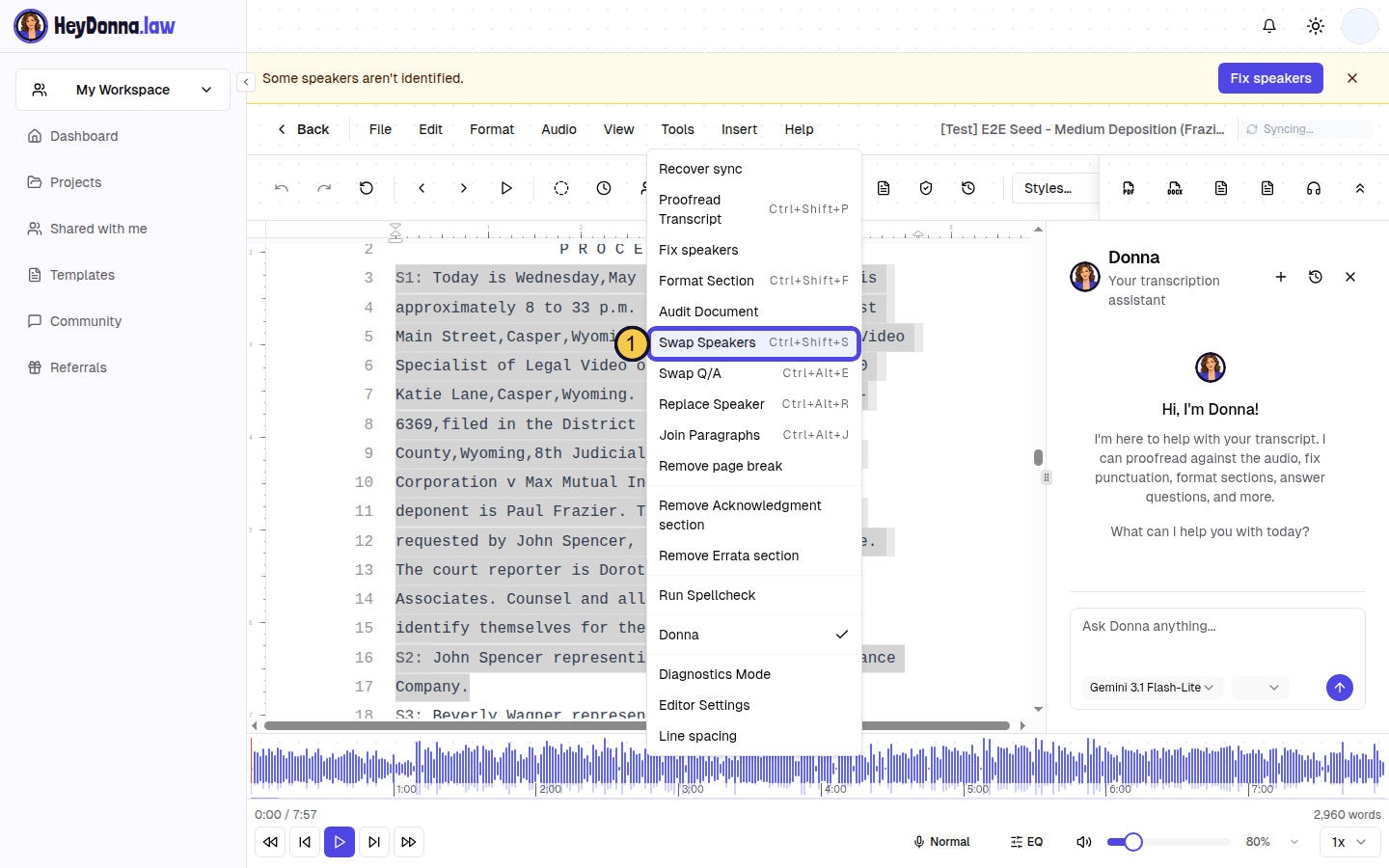
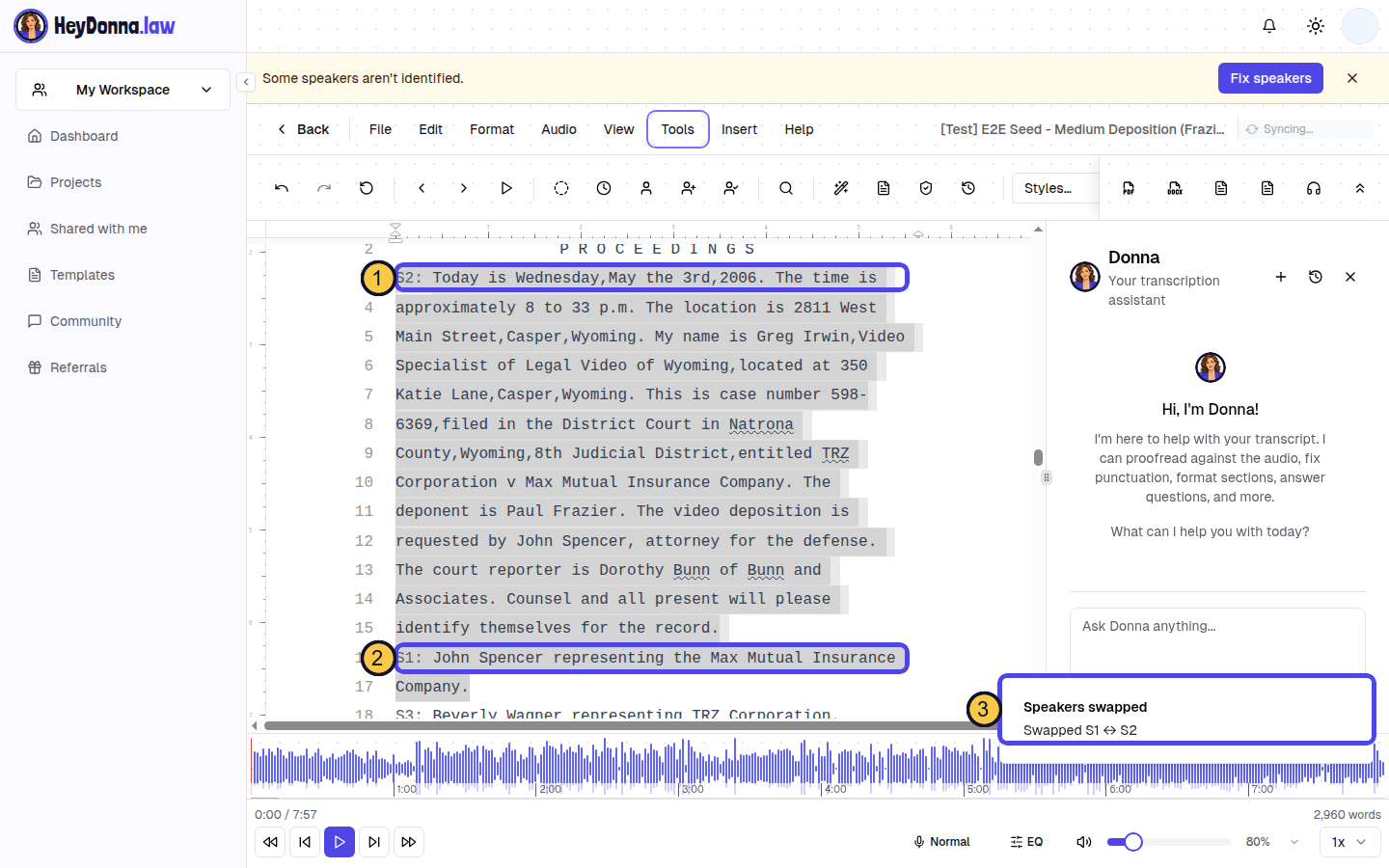
Swap Speakers. If two labels are flipped across a selection, select it and choose Tools, then Swap Speakers (Ctrl+Shift+S, Cmd+Shift+S on Mac). With two speakers in the selection they swap and a “Speakers swapped” toast names the pair. With three or more, a dialog asks which pair. Only labels inside the selection change, and with Track Changes on you can reject or undo.
Ask Donna when you’re not sure. If you cannot remember where a tool lives or what it does, open the Donna chat panel in the editor and ask in plain words, for example “How do I rename a speaker?” or “How do I swap two speakers?” Donna answers from HeyDonna’s documentation. Treat the answer as a pointer to the tool, then confirm the result in the editor and against the audio before you certify.
Ask Donna. Not sure what to do next? Open Tools, then Donna, and ask a question such as “What speaker labels are in this document?” or “How do I rename a speaker?” Donna answers questions; check any change against the recording.
A 60-second pass before you certify
Run this after any formatting or label fix, and before you sign.
- Spot-check every speaker change near an objection or crosstalk.
- Play every one-word turn, since those are the turns most often clipped or misattributed.
- Confirm the first and last Q and A of each section match who is actually asking.
- Confirm every section was formatted, then search for any leftover “Unidentified” or “Speaker N” labels.
If you are unsure who said a line, follow your assignment’s clarification process and keep the open item visible. None of this makes the draft wrong in a new way. It points your attention at the places AI is least reliable.
Which of these four costs you the most time? Tell us in the replies.
Related: Gemini, Sol and Sonnet: speaker tracking is still not fixed and the HeyDonna editor.